

Connect a model
The agents are Pi, an open-source coding agent (more about Pi here). It’s built into Solipsist, so there’s nothing extra to install. Pi needs a model, and there are two ways to give it one.
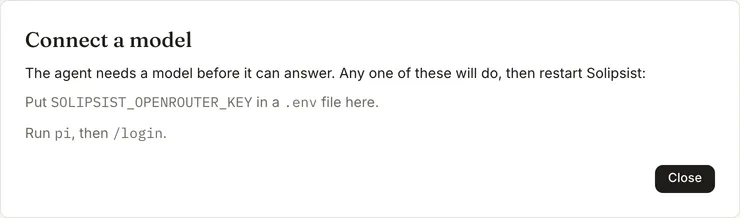
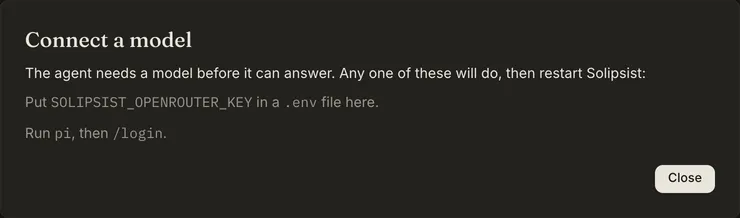
If you ask for something before a model is connected, you get this dialog instead of a request that would fail:
An OpenRouter key
Section titled “An OpenRouter key”Set the key in your environment, in your shell’s profile (~/.zshrc, ~/.bashrc) to keep it:
export SOLIPSIST_OPENROUTER_KEY=sk-or-...Solipsist doesn’t read a .env from the folder it runs in: that folder may be someone else’s.
More on OpenRouter. You can also put it in solipsist.yaml as pi.openrouter_key, but that file is easy to commit by accident. The
server never prints a key. Errors and --print-config only say whether one is set.
A login you saved in Pi
Section titled “A login you saved in Pi”If you already use Pi in a terminal, Solipsist picks up Pi’s own configuration, the same way the pi command does in
that folder (~/.pi/agent, plus a project .pi). Your saved logins, skills and connected tools work here too. To add
a login, run pi and then /login.
A model on your own computer
Section titled “A model on your own computer”Pi can also run through Ollama, LM Studio, llama.cpp or vLLM. See Local models.
Choosing the model
Section titled “Choosing the model”Each page has its own model. You pick it in the agent panel, next to the switch that turns the page’s agents on and off, and the status bar shows which model the page is using. The picker shows a shortlist first, and you can search every model Pi can run. To pin your favourites to the top of the list on every page:
agent: preferred_models: - pi:openrouter/~deepseek/deepseek-flash-latestIf a run is in progress when you change the model, it finishes on the old one. If no model can run yet, the status bar’s model reads Connect a model instead.


For Solipsist 0.1